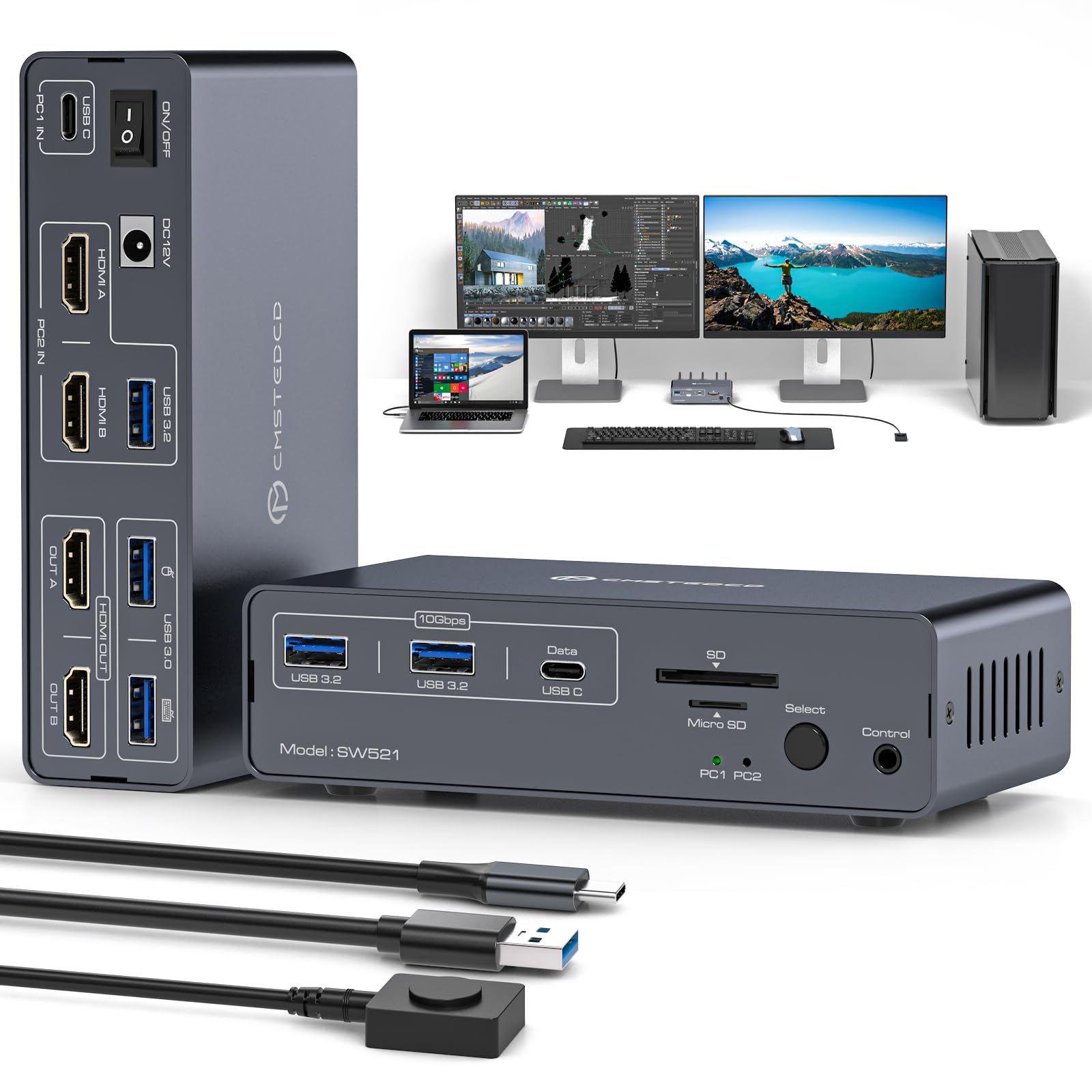
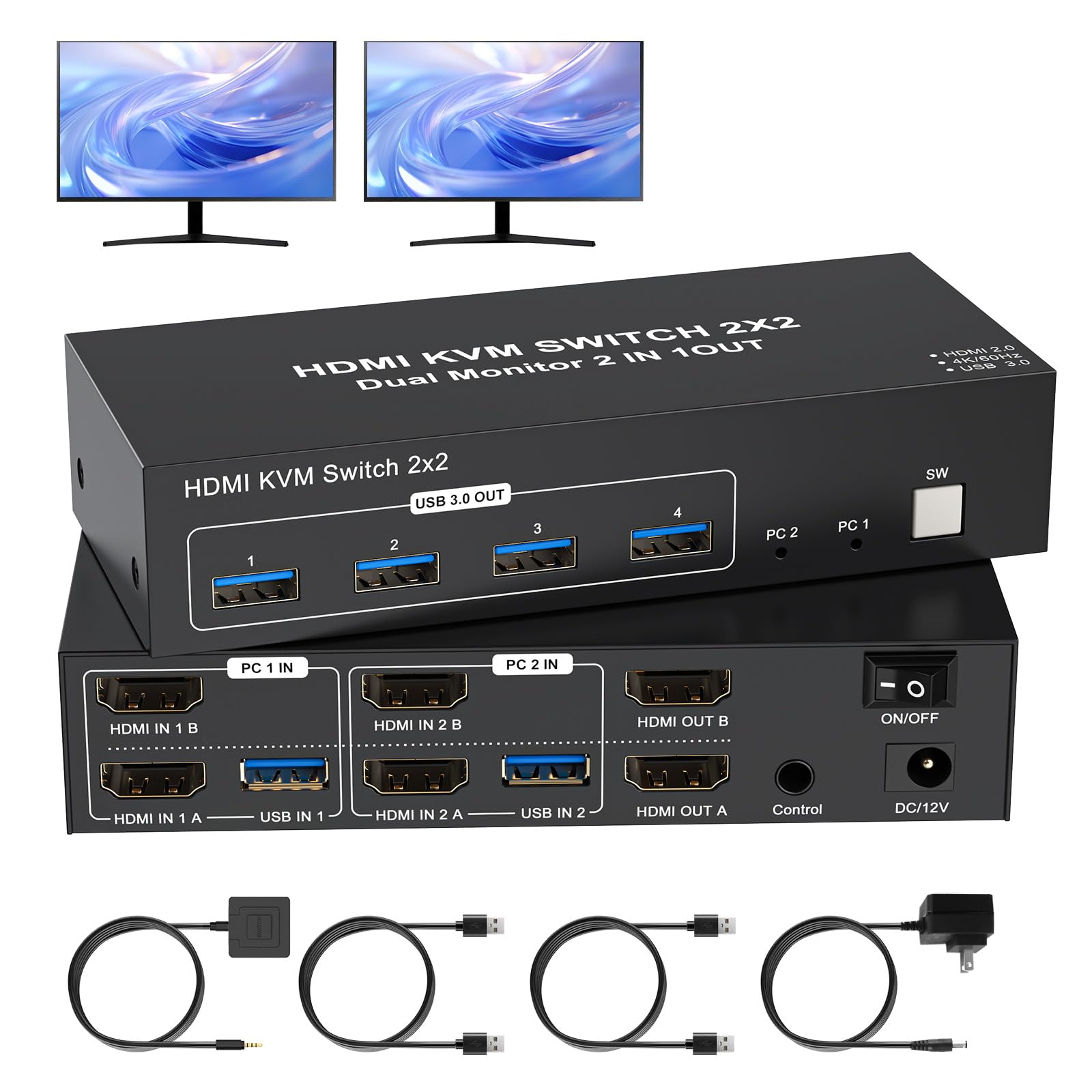
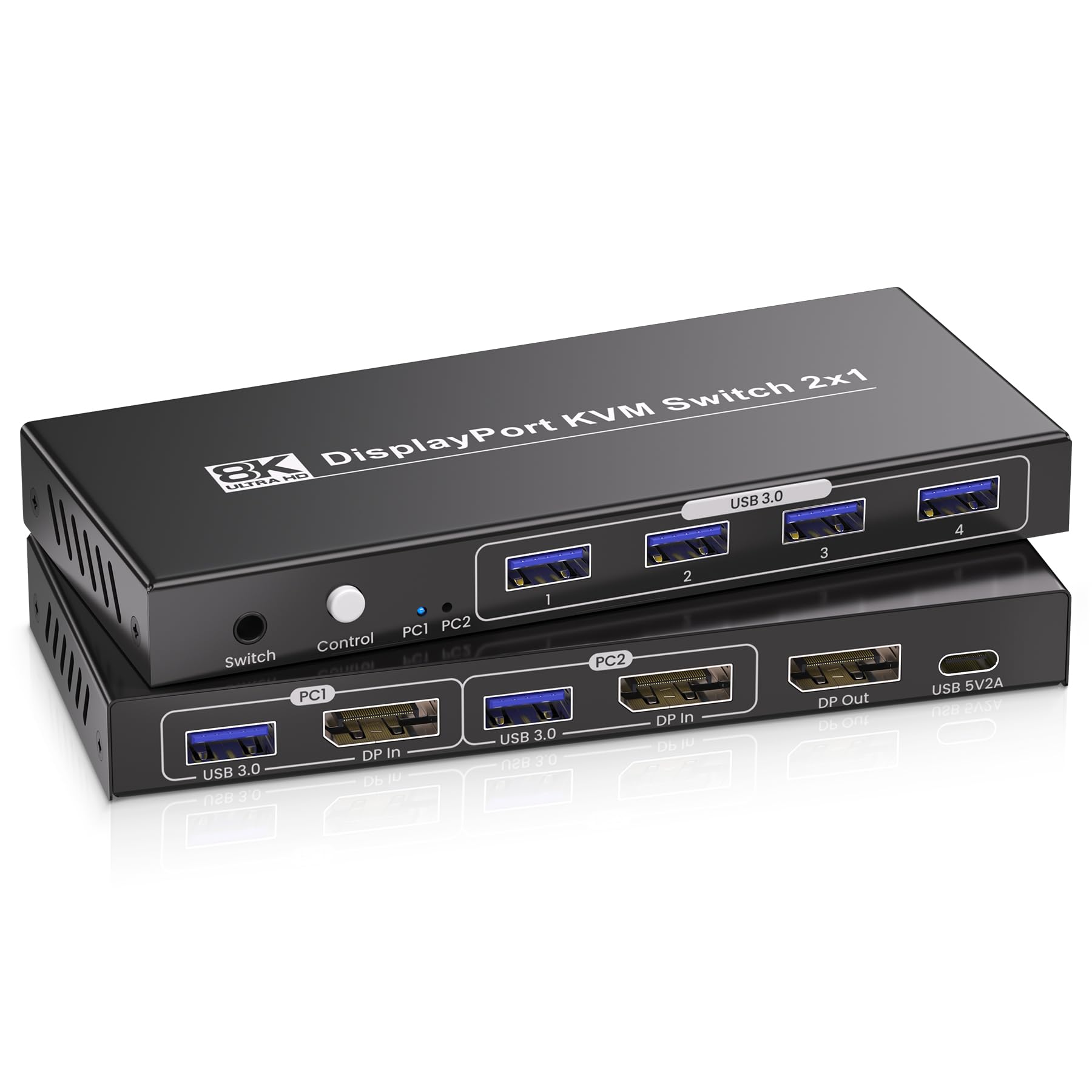
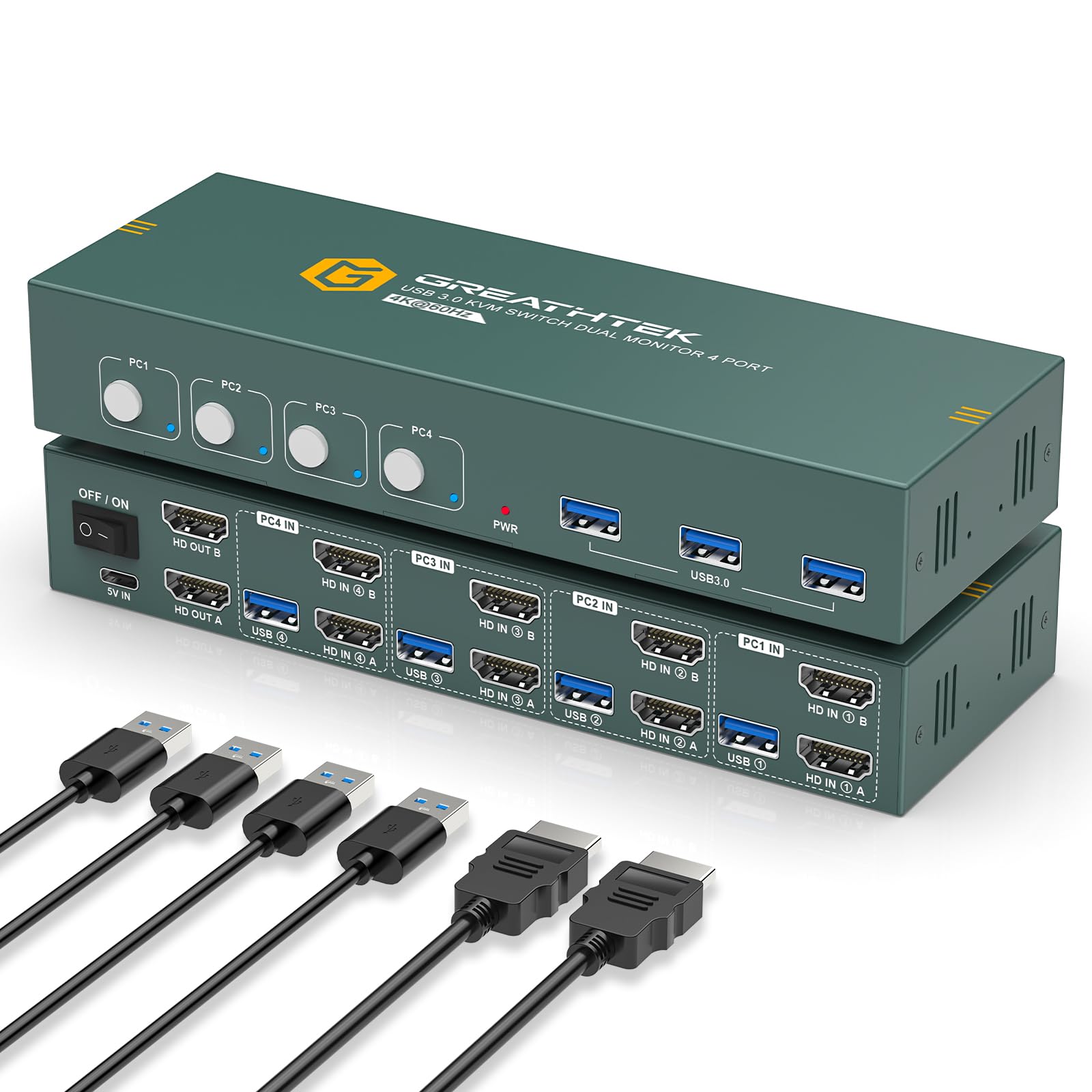
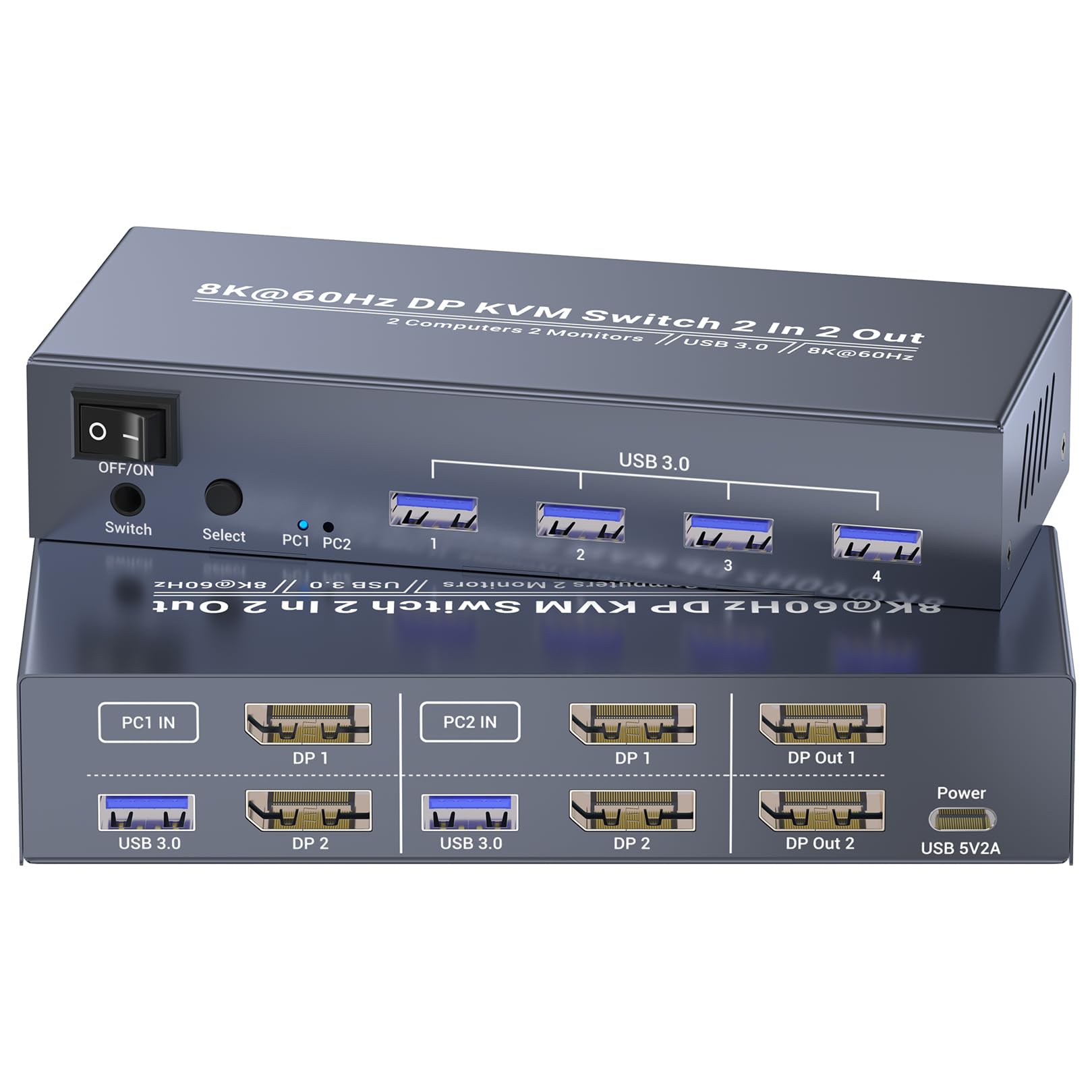
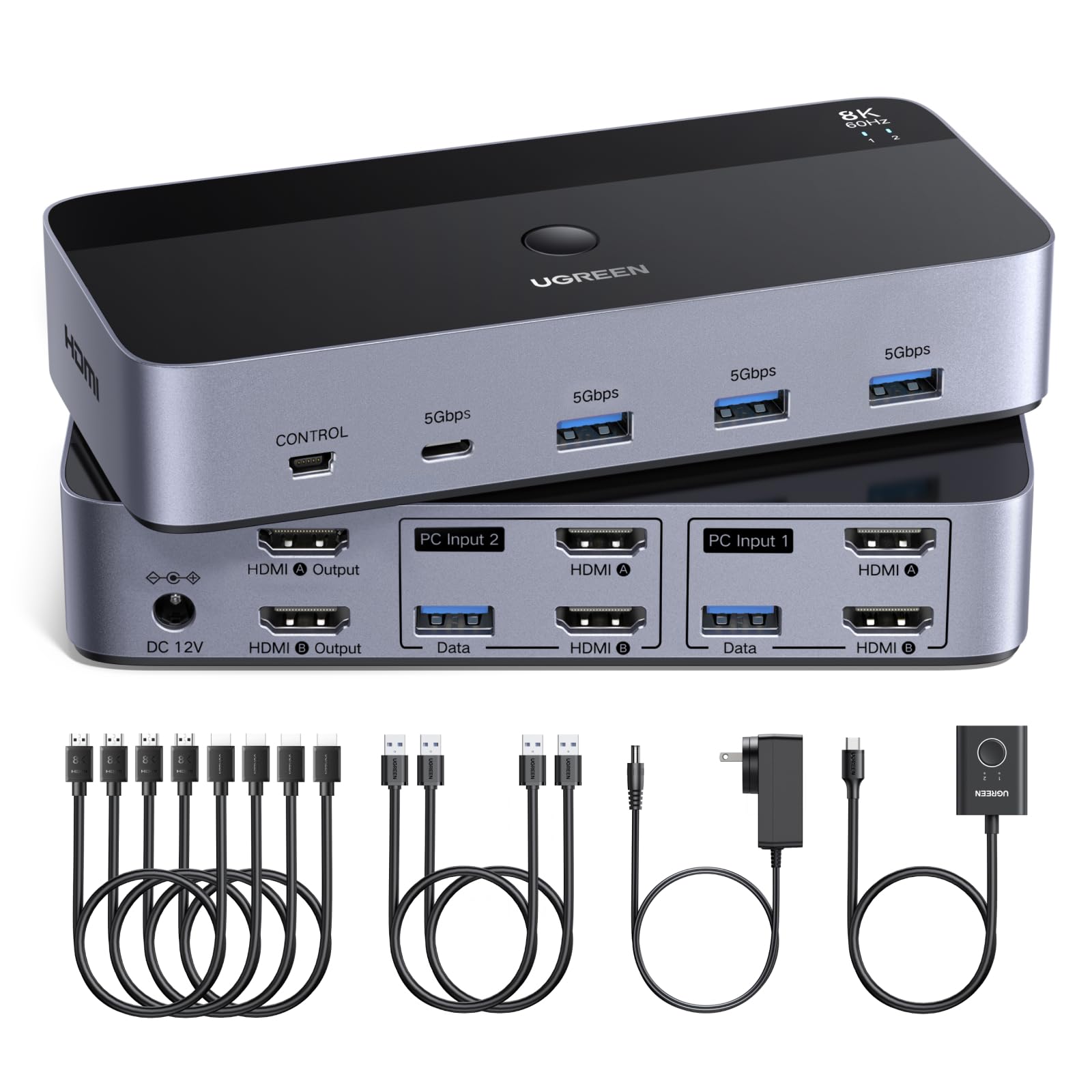
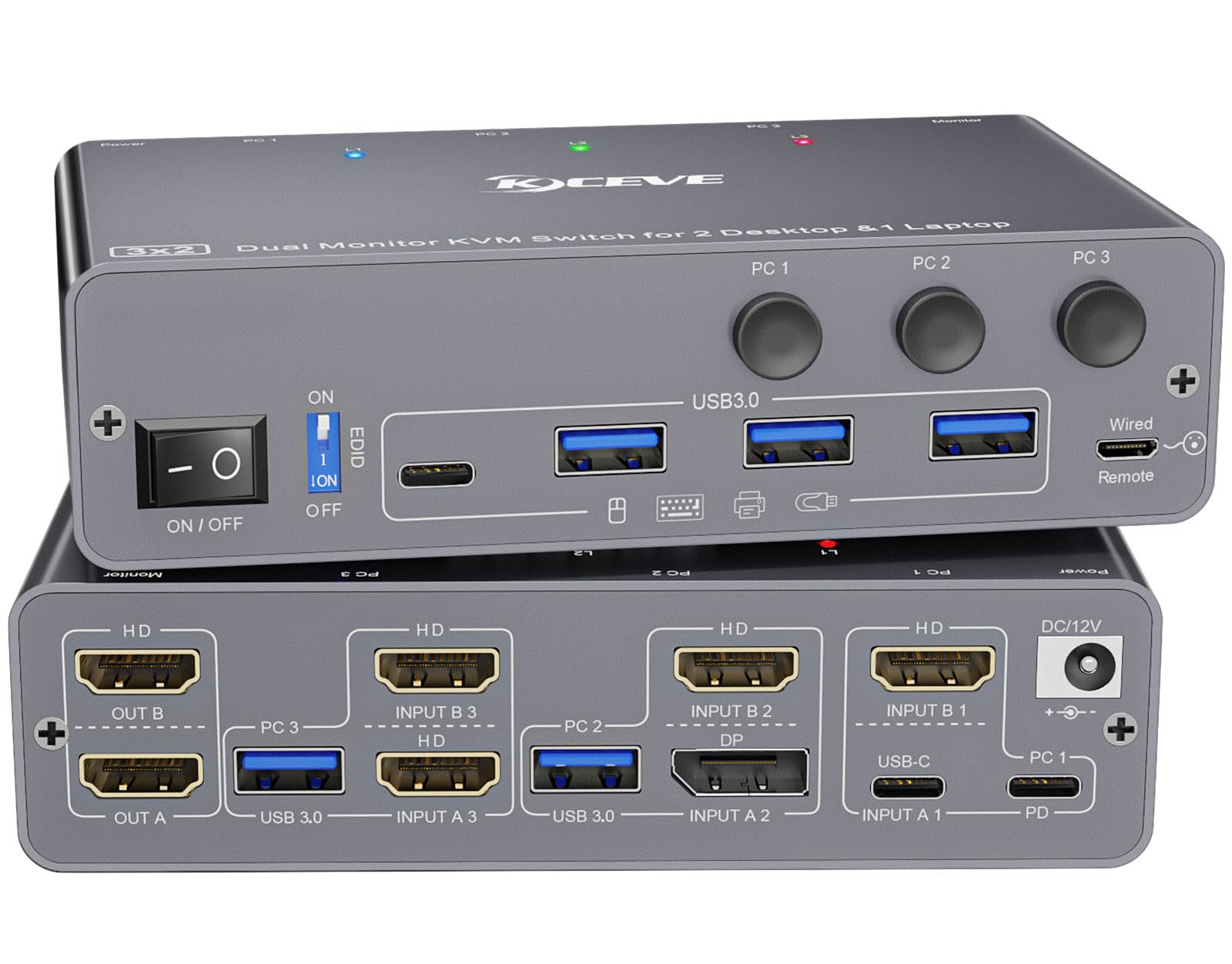
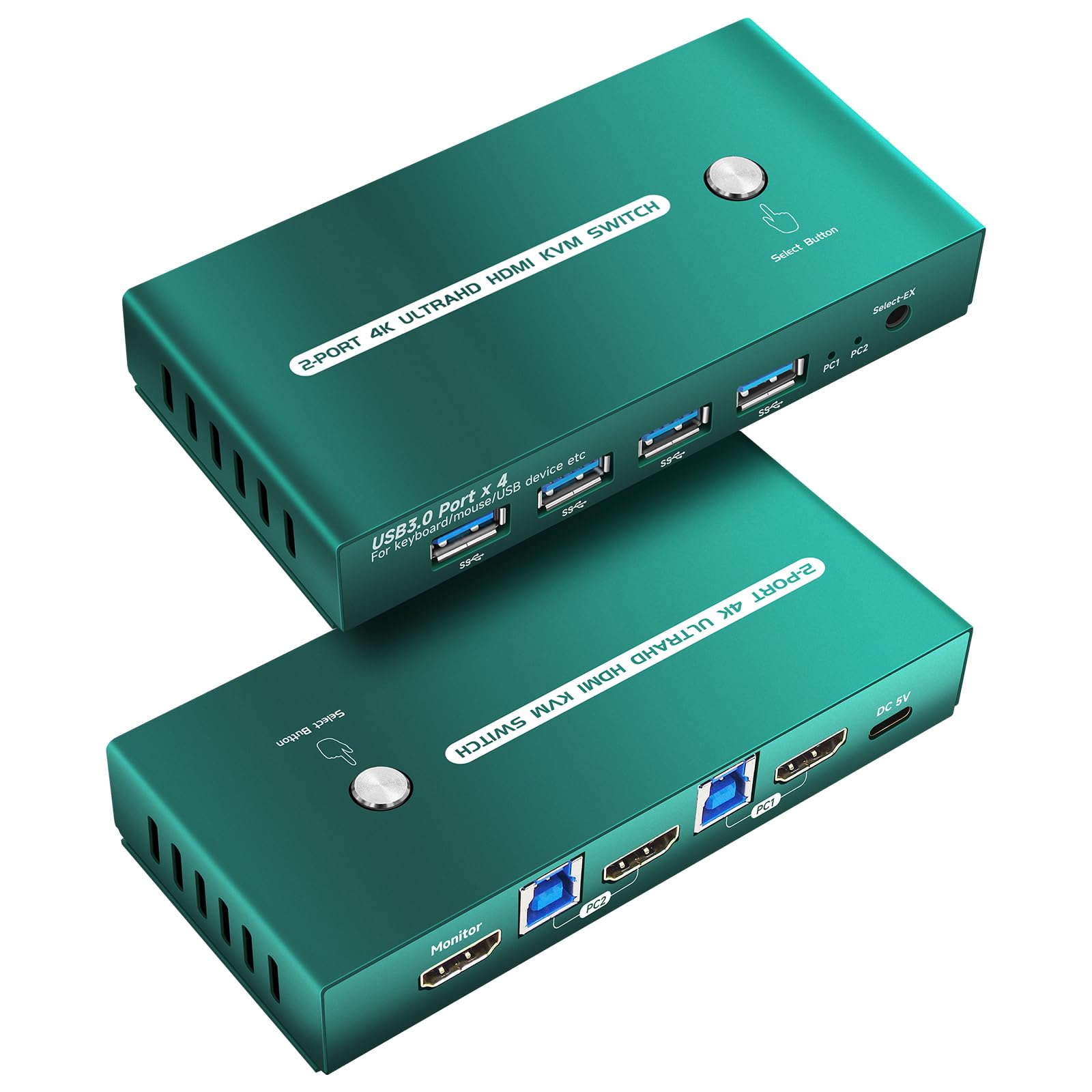
Before Purchase: 1.Your computer must have a Thunderbolt 3 (or higher) USB-C port. 2. When connecting a MacBook/Mac OS device to dual monitors via the switcher, only mirroring mode is supported, not extended display (a system limitation). 3.The switcher's USB-C port does not support charging (no PD function).4. Avoid DP cables over 9 feet, below DP1.4 spec, or any adapters. For stable performance, use a 3.3-foot DP1.4 cable KVM Docking Station: USB C KVM switch 2 Computers 2 Monitors HDMI Allows your desktop and laptop to share two monitors (with extended display support) and a 13-in-1 docking station. Perfect for keeping your work and personal life separate yet connected. (Mac users: mirror mode only.) Please Check Compatibility: This kvm docking station requires that your laptop's USB C port supports the DP Alt Mode feature, or a laptop with Thunderbolt 3/4/5 ports. For example, the following laptop series: H-P Laptops-EliteBook 700/800, Omen, Elite Dragonfly, Elitebook Ultra series; D-e-ll Laptops-XPS, Latitude, Precision, Pro series; Le-no-vo Laptops-ThinkPad, YOGA, ThinkBook, X1 series; A-c-er Laptops-Swift, Concept D, Neo 2023+ series; A-su-s Laptops-ROG, ProArt series. For laptop specific models or compatible models of other brands, please check the second main picture and the second picture of Product Description to confirm 13-in-1 Docking Station 4K@60Hz: USBC HDMI KVM Switcher allows 2 PC share two 4K@60Hz HDMI 2.0 ports (Windows supports extended display), 2 USB A 3.0 ports, 4 USB A/C 3.2 ports, SD and microSD card slots, and more—expanding connectivity while saving desk space. Note: Does not support laptop charging Advanced EDID Emulation: Prevents desktop icon rearrangement when switching between computers, allowing you to quickly resume your workspace. Works flawlessly with dual/triple monitor setups Fast Data Transfers: USB 3.2 KVM switch with speeds up to 10Gbps —transfer large files, 4K videos, and high-res photos in seconds Keep Your Desk Clean: Our KVM switch includes a wired extension button, so you can: Hide the main unit—Tuck it under your desk or behind your monitor; Place the button within easy reach—Mount it anywhere for one-tap switching; Enjoy a clutter-free workspace—No more messy cables or bulky switches in sight 1